System Log
Provides access to the RSWA activity log, including the performing of inspections, licensing updates, importing and exporting data, and other general system errors and warnings.
On this page, it is possible to clear the logs, filter them, and export them to a USB drive.
- 4.7.0 and Newer
- 4.6.0 and Older
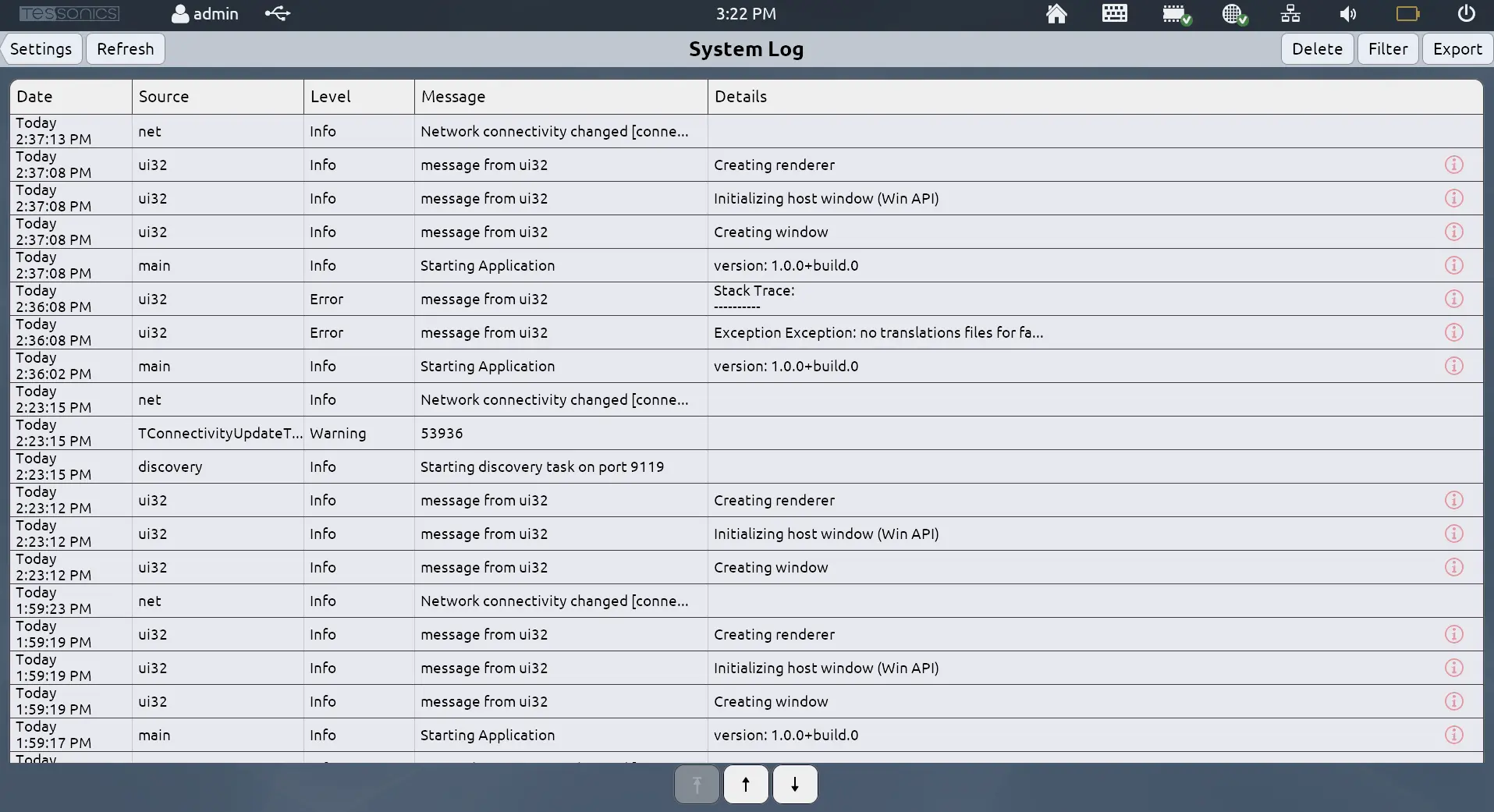
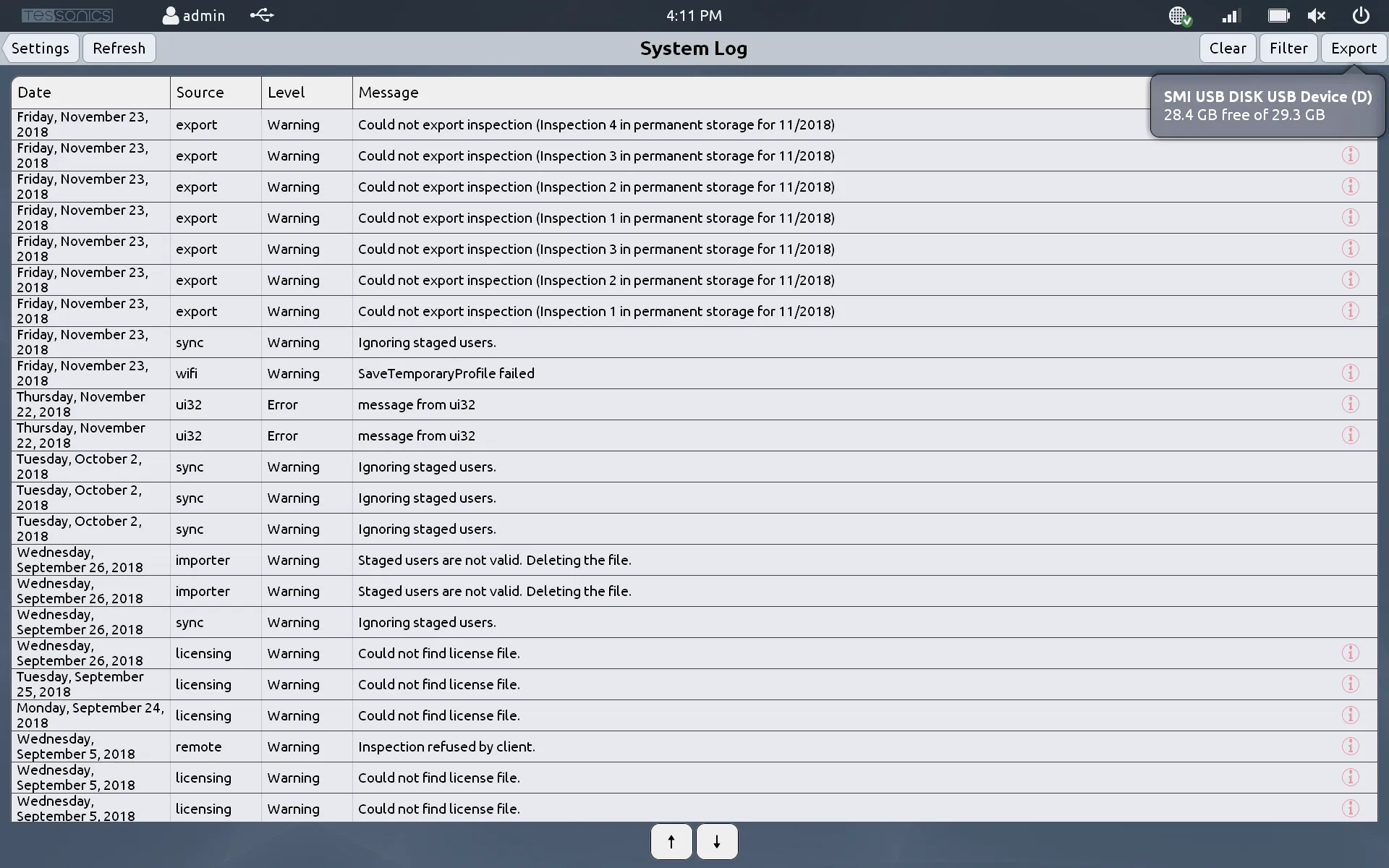
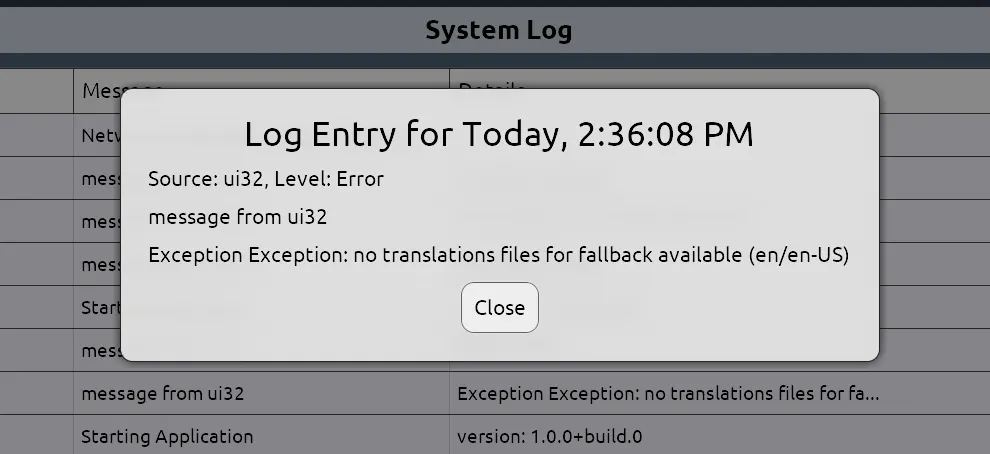
Logs with additional details will have a red (i) icon at the right of the row. Pressing and holding any log entry will display a popup with all the details for the given log.
Filters
The logs may be filtered based on date range and message level.
The date ranges available are:
- Last 24 hours;
- Last 48 hours;
- Last 72 hours; and
- All time.
There are four log levels, which are described below:
| Level | Details | Filtering |
|---|---|---|
| Debug | These are for more detailed logs pertaining to specific operations. | Shows all logs for all levels. |
| Info | These logs show generic steps as they occur, such as when the application first starts, the network connectivity changes, etc. | Shows all logs except Debug. |
| Warning | These appear when something goes wrong or causes an unintended side effect. | Shows only Warning and Error logs. |
| Error | These occur when an operation fails, and are the most severe log entries. | Shows Error logs only. |
Exporting Logs to USB
Logs may be exported to USB via the Export button, which will prompt the user for which connected USB device to export to.
- 4.10.0 and Newer
- 4.9.1 and Older
This process can generally take 1-2 minutes to complete. If the Diagnostics Snapshot tool is somehow unavailable, the program will fallback to the old method of exporting to an XML file.
For version 4.9.1 and older, the logs are exported to a folder on the USB drive called tessonics-logs as an XML file.