Backup/Export Results
The following options are available to export correlation results from the Correlator App:
- Exporting the algorithm settings to TDS
- Generating a correlation report
- Saving the workspace
Export of Algorithm Settings to TDS
After calculation of the correlation, the optimal parameter set must be chosen. Once found, they can be applied to all spot welds which were used for the correlation.
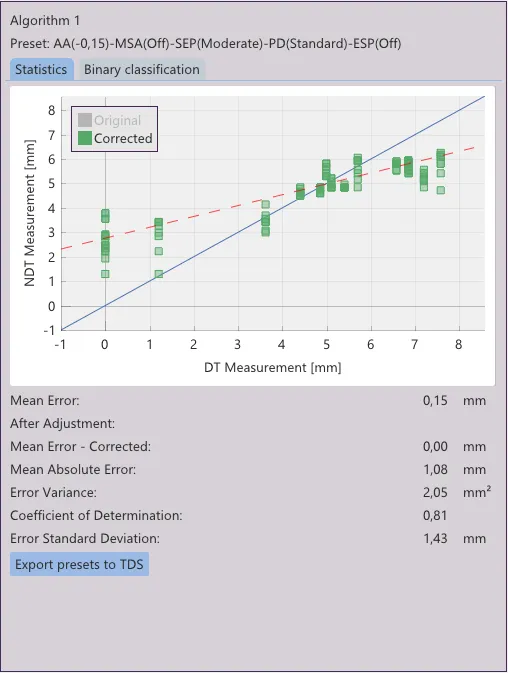
Clicking on Export Presets to TDS will open the export dialog.

Here, individual spotwelds may be excluded retrospetively, if they should not be updated. The TDS' address must be entered in the TDS-Server input field.
In TDS all parts and welds that should be updated must be defined with the same identifiers as they were, when the measurements were exported from the RSWA.
The Correlator App creates an algorithm preset with the name as it's shown in the Correlator App. These presets will than be applied to all selected spot welds.
Creation of a Correlation Report
Once the correlation is calculated, the displayed results can be exported in document form with a click on Export→Export Report in the top menu.
A browser window will open presenting the report document. The browser's print dialog allows to create a PDF export or a physical print of that report. We recommend printing in horizontal format as the tables are suited better for wide paper formats.
Saving the Workspace
The menu File→Save Workspace allows for saving the correlation. The user is prompted to select a target folder. This folder will be populated with all relevant source files and the required settings.
This ordner may be zipped and sent to other devices. There, they can be read by unzipping and opening them via File→Load Workspace.
Next Chapter
Visit here to learn about evaluation and here to go back ot the main correlation page.