Button Area
The left portion of the main window contains the button panel.
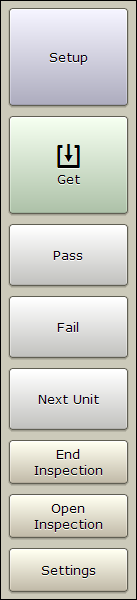
| Button | Function |
|---|---|
| Setup | Setup the unit for measuring welds on a specific metal stack. |
| Get | Takes a single measurement. (Push and hold to enter continuous mode; see Continuous Mode Panel.) |
| Settings | Allows changing various application settings (see Settings). |
The next three buttons are used with inspections. See the Inspections section for more details.
| Button | Function |
|---|---|
| Pass | Clicking this button passes the current weld in the weld list. If a measurement hasn't been performed or the pass button is held down, a pop-up list of reasons for passing the weld will appear. |
| Fail | Clicking this button fails the current weld in the weld list. You must select a reason for failing a weld from the pop-up list that appears. |
| Next Unit (In Part Inspection mode) | Shown only for Part Inspections, this button replaces the New Weld button. Pressing it will start a new inspection using the same part you were working on. |
| New Weld (In Custom Inspection mode) | Shown only for a Custom Inspection, this button adds a weld to the list of measured welds. |
The next two buttons allow starting, saving, and opening inspections. See the Inspections section for more details.
| Button | Function |
|---|---|
| New Inspection/End Inspection | Starts new inspection. Once an inspection is started, this button changes to End Inspection. |
| Open Inspection | Opens a previously stored inspection (see Opening Inspections). |