Exiting the Auditor
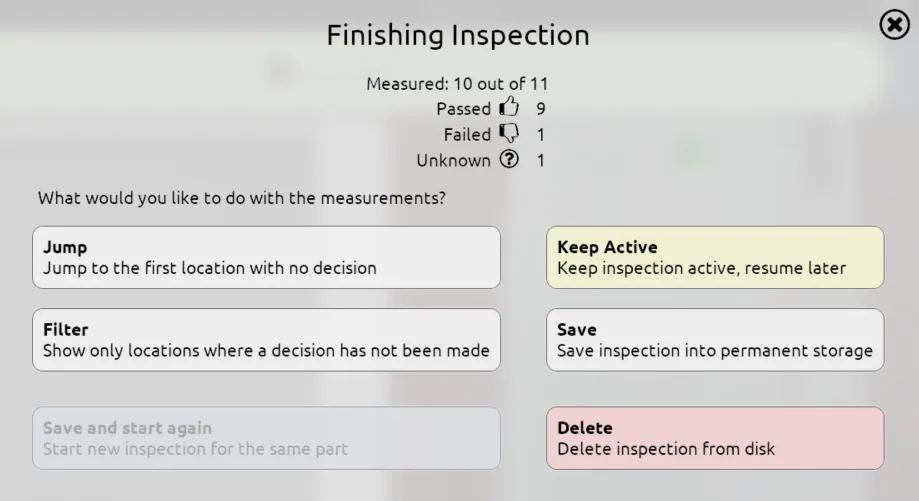
To exit an inspection, click the X button in the top-right of the screen. A window will appear, displaying the overall details of the inspection including:
- How many joints were measured;
- How many were passed;
- How many were failed; and
- How many have no decision.
After saving or deleting an inspection, the auditor will close and you will be taken back to the New Inspection screen.
| Headers | Description |
|---|---|
| Keep Active | This will save the inspection in its current state, but will allow for future modification. Active inspections are not allowed to be exported to the TDS server. |
| Save | The inspection will be saved to permanent storage, and will then be ready to export to the TDS server. Saved inspections can not be edited. You will be prompted before saving to permanent storage. |
| Delete | Delete the inspection data on the hard drive of the RSWA unit. Deleted inspections cannot be restored. |
| Jump | Jump to the first joint with no pass or fail decision. |
| Filter | Only shows the joints with no pass or fail decisions. That way the user can simply inspect the joints they missed. |
| Save and Start Again | This allows you to quickly save the current inspection and start a new inspection using the identical template. Hence, it is useful for inspecting multiple parts of the same batch. |