Display Settings
By selecting the fourth button at the top, you enable the Display Settings window containing multiple different settings.
This page requires you to sign in as an Advanced User or Administrator. However, for software versions 4.9.0 and newer, the following settings are enabled for all users:
- Display Entries Setting;
- Active Spot Color; and
- Hotspot Visibility.
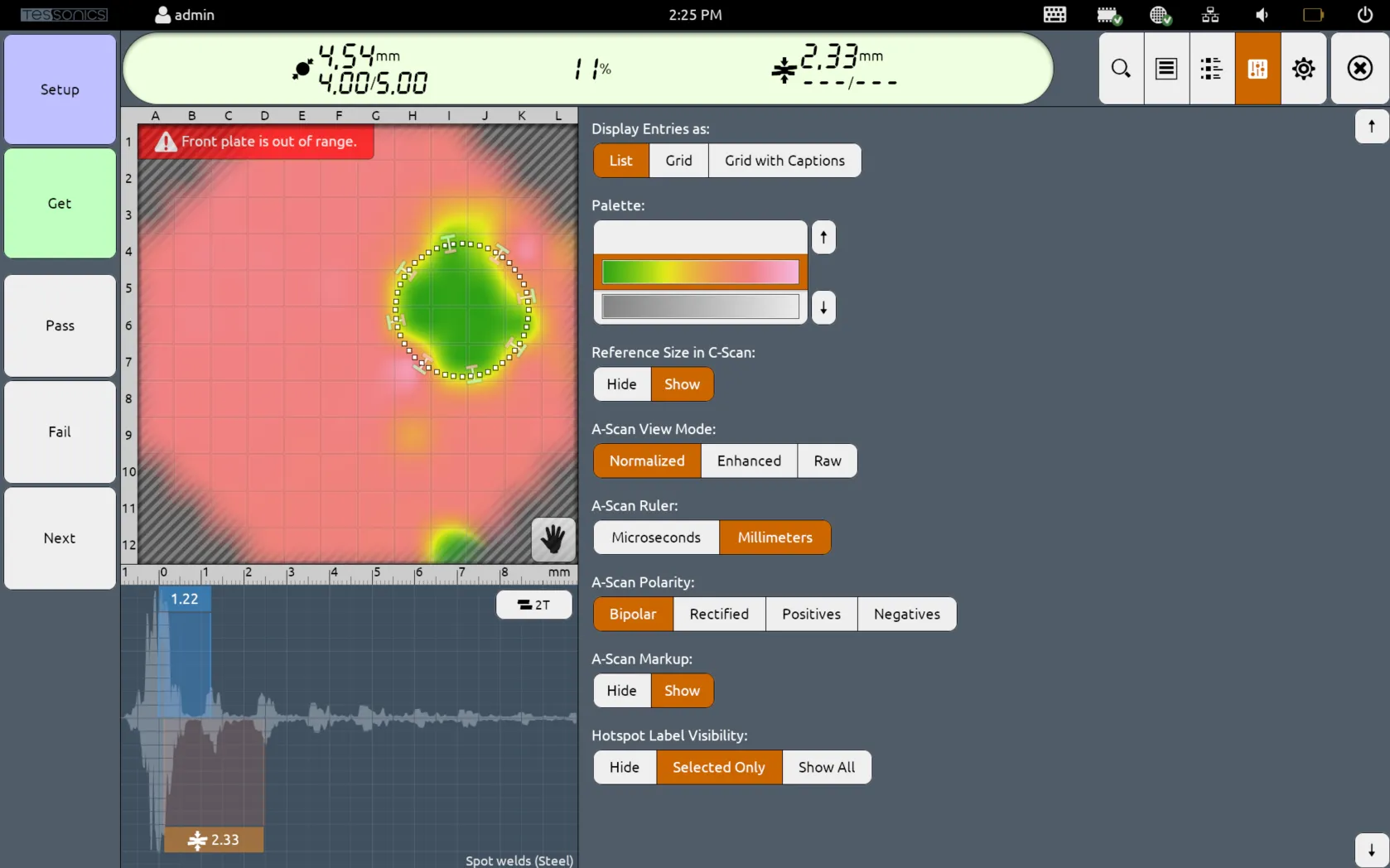
Display Entries As...
The option Display Entries As allows you to change the display of the Joint List. The default view is List.
Palette
This option changes the color preferences of the C-Scans.
Reference Size in C-Scan
This option toggles the display of the dotted circle, indicating minimum and, where applicable, target diameter on top of the C-Scan. The default option is Show.
A-Scan View Mode
This option changes which A-Scan is displayed in the A-Scan panel. The default option is Normalized.
- Normalized: This displays the A-Scans with comparable initial screen height, as computed during auto setup.
- Enhanced: This increases the gain to make each peak more noticeable. Please note, the actual measurement values are not modified. Instead, their display is.
- Raw: This displays the raw and unprocessed A-Scans.
The A-Scan Markup cannot be displayed when viewing the raw A-Scans since the raw copy may not be aligned with the ruler.
- Normalized
- Enhanced
- Raw


A-Scan Ruler
This option changes the unit of the ruler in the A-Scan panel between Microseconds and Millimeters. The default value is Millimeters.
A-Scan Polarity
This option changes the polarity of the A-Scan:
- Bipolar: This shows both positive and negative values for the A-Scan, that is, high frequency display.
- Rectified: This shows the absolute value of the A-Scan measurements.
- Positives: This shows only the positive portions of the A-Scan peaks.
- Negatives: This shows only the negative portions of the A-Scan peaks.
For RSWA (spot weld) inspections, the A-Scan display is Bipolar by default. For ABIS (adhesive bond) inspections, it is set to Negatives by default.
- Bipolar
- Rectified
- Positives
- Negatives


A-Scan Markup
This option toggles the display of the stack thickness overlays in the A-Scan panel. The default value is Show.
Hotspot Label Visibility
This option toggles the display of the joints on the Image Panel:
- Hide: Hides all joints on the image except for the currently selected joint.
- Selected Only: Shows only the joints that belong to the inspection route of the current inspection.
- Show All: Shows all joints, including the ones not in the current inspection route. Those joints are displayed as black
Xmarkers.