Signal Processing Settings
The rightmost Settings gear icon toggles the display of the Signal Processing Settings. This handles different preset settings according to our algorithm documentation.
This page requires you to sign in as an Advanced User in order to modify any settings.
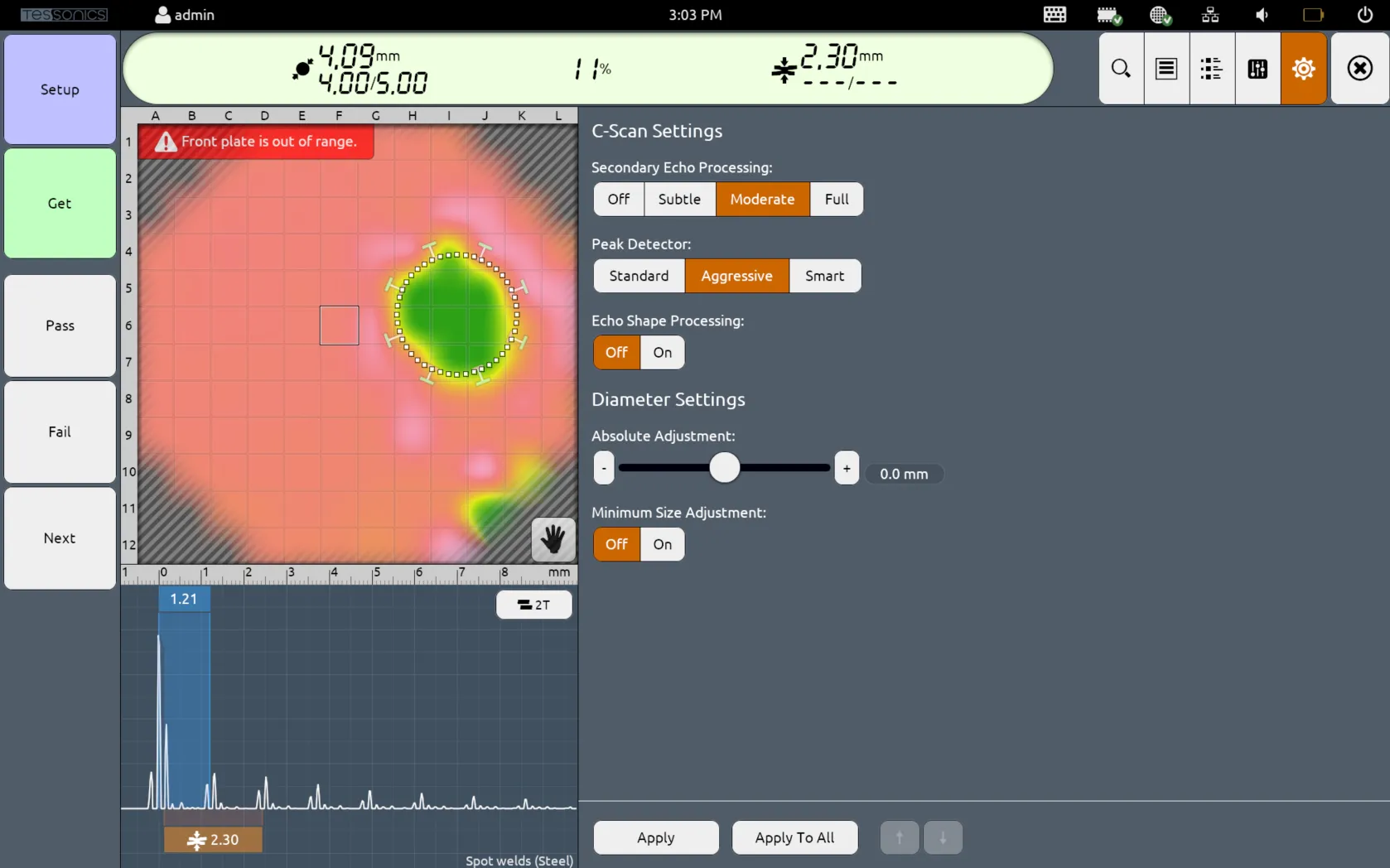
Using Algorithm Presets Defined in Desktop Tools
If the selected joint has an algorithm preset configured using Desktop Tools, these settings will automatically change to match the given preset.

If you wish to override the algorithm preset, simply toggle the Use algorithm preset switch to Off and change the values as you wish.
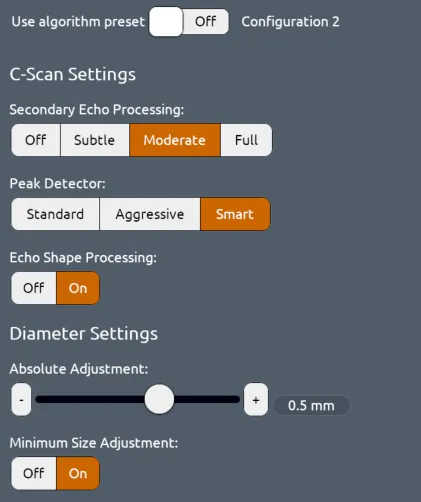
In software versions 4.7.0 and newer, the Settings icon is highlighted in red if the user overrides the algorithm preset defined in Desktop Tools, as a visual cue that the default preset is switched off.

You may discover how each setting works by visiting our algorithms page, but here are the default values used in the software:
| Setting | Default Value |
|---|---|
| Secondary Echo Processing | Moderate |
| Peak Detector | Aggressive |
| Echo Shape Processing | Off |
| Absolute Adjustment | 0.0mm |
| Minimum Size Adjustment | Off |
After changing any of these settings, be sure to select Apply at the bottom to apply the changes to the current joint. Additionally, selecting Apply To All will apply these preset settings to all joints in the current inspection.
Apply To All is mostly useful when reviewing closed inspections, since those are read-only. However, for active inspections, it should be used cautiously as it will override all previously used preset settings.